Create and track charges
Set a PEURO amount or a reference-currency amount, generate a unique QR/link and follow pending, paid, cancelled or expired charges. Customers must approve payment.
 KonebeCrypto Wallet & Ecosystem
QR-based collection with a main receiving wallet, a dedicated cashier device and POS integration. Customers approve payments in their own wallets; businesses can follow charge and payment status.
Use tools already provided in KONEBE without disclosing the seed or private key of the receiving wallet.
Set a PEURO amount or a reference-currency amount, generate a unique QR/link and follow pending, paid, cancelled or expired charges. Customers must approve payment.
The main account shows a QR containing only its public Solana address. PEURO tokens from confirmed payments go directly to this wallet.
On another device, scan the main wallet QR or paste its public address. The cashier creates charges payable directly to the main wallet without handling the funds.
Enable “Hide other functions” to hide menus and other services during work. It also works without a linked main wallet. This is only a reversible visual mode, not a security lock.
Connect your point-of-sale backend using HTTPS and a revocable API key. Choose BRL, EUR, USD or PEURO as the pricing currency; each sale has its own QR/link and verifiable payment status.
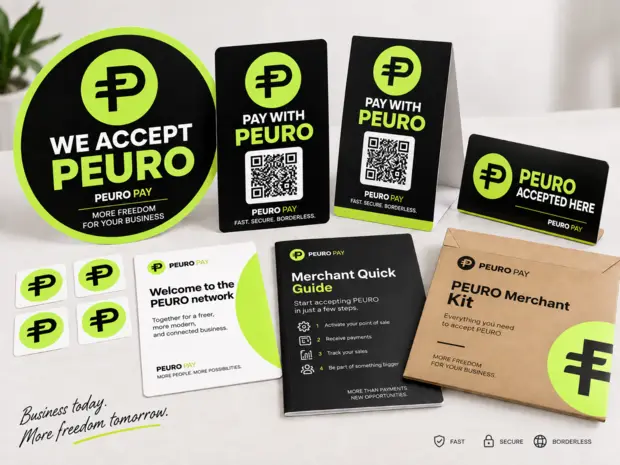
Use the Kit tab to review conditions and request merchant materials, subject to eligibility and availability shown in the app.
In KONEBE, select the merchant area and choose Commerce, Connections or Kit.
Receive in your own Solana wallet or let the cashier device scan the main wallet QR.
Your customer reviews the QR or charge link and authorizes the PEURO payment.
Check the statement or order status. A POS sale is paid only when the server reports `paid`.
In Connections → POS, activate a connection, choose the pricing currency and copy the integration key shown once. Store it only on the POS backend. The API creates a charge for each unique sale identifier and lets the POS check payment status.
↓ Download POS integration manual (PDF, Portuguese)Important: BRL/EUR/USD are pricing references, not bank settlements. Funds arrive in PEURO tokens on Solana. Software vendors must integrate the API; manufacturer compatibility is not automatic. Never disclose private keys.No. Linking uses only the public Solana wallet address. Never share recovery phrases or private keys.
No. It only hides navigation for a simpler work experience and can be switched off in the app.
No. The POS provider must implement the server-to-server API using the integration guide.
No. They are pricing references. The actual payment is in PEURO to the selected Solana wallet.
Only after the backend confirms the payment status as `paid`. Displaying a QR is not proof of payment.