


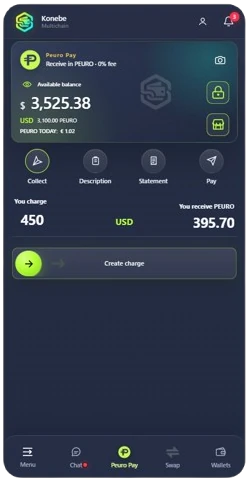
Prepare the charge
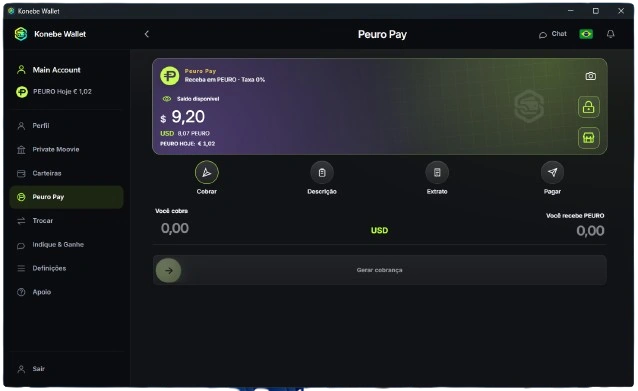
Enter the amount and review the displayed PEURO equivalent before creating the charge.
KONEBE · PEURO PAY
Peuro Pay is Konebe's merchant collection product for creating QR or payment-link requests, tracking blockchain confirmation and connecting cashier devices to a receiving wallet. It is not a promise of bank-account settlement in fiat currency.
See the payment flow ↓
PEURO PAY · REAL PRODUCT SCREENS
Follow a PEURO payment through real application screens. Each step shows a different part of the checkout flow.
Enter the amount and review the displayed PEURO equivalent before creating the charge.
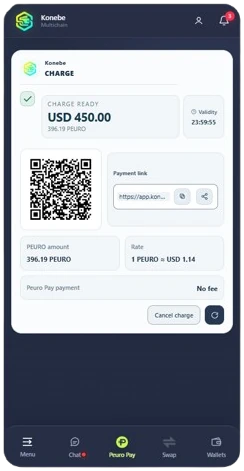
Show the QR code to your customer or share the payment link created for that charge.
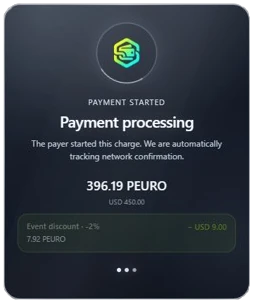
Follow the processing status and wait for confirmed payment before fulfilling the sale.
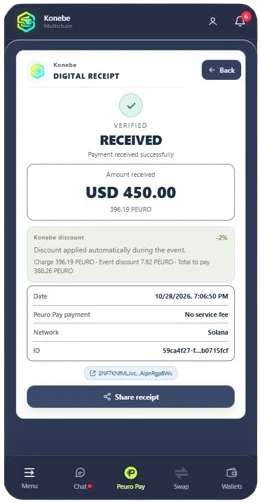
Check the receipt and recorded transaction details when reconciling the sale.
Official app screenshots. Amounts shown are interface examples, not live exchange rates.
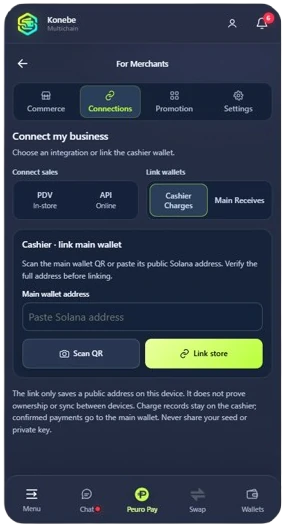
PEURO PAY · FOR MERCHANTS
The merchant area lets you configure POS or API connections and link checkout devices to the wallet receiving PEURO. Cashiers can create charges without access to the receiving wallet’s recovery phrase.
HOW IT WORKS
A merchant enters an amount and generates a request. The system distinguishes states such as pending, paid, expired and cancelled as supported by the deployment. Release the sale only after the system confirms a valid payment, not simply because a QR code was displayed.
The business owner can designate a receiving wallet while cashier devices create and monitor payment requests. The cashier does not need the receiving wallet's recovery phrase to perform this task.
The described experience includes expiration times, reporting periods, a simplified cashier interface and promotional materials when available. A visual kiosk lock is a usability measure, not a substitute for backend permissions or authentication.
A merchant can connect an existing point-of-sale system using a server-to-server integration. Sale identifiers, status checks and settlement reconciliation are essential; see the dedicated integration page and public manual.
The public product description specifies PEURO on Solana as the receiving asset. BRL, EUR or USD may be reference currencies for quoting and must not be presented as direct fiat deposits to a merchant's bank account.
PEURO PAY · MATERIALS
Create a banner with your public Solana address or download official marketing kits. A banner QR does not create an amount-specific charge.
PEURO PAY · MERCHANTS
Let customers know you accept PEURO with Peuro Pay, Konebe Wallet’s payment processing system.
Use a wallet you control on Solana. Never enter your recovery phrase.
Enter your Solana wallet to create the materials.
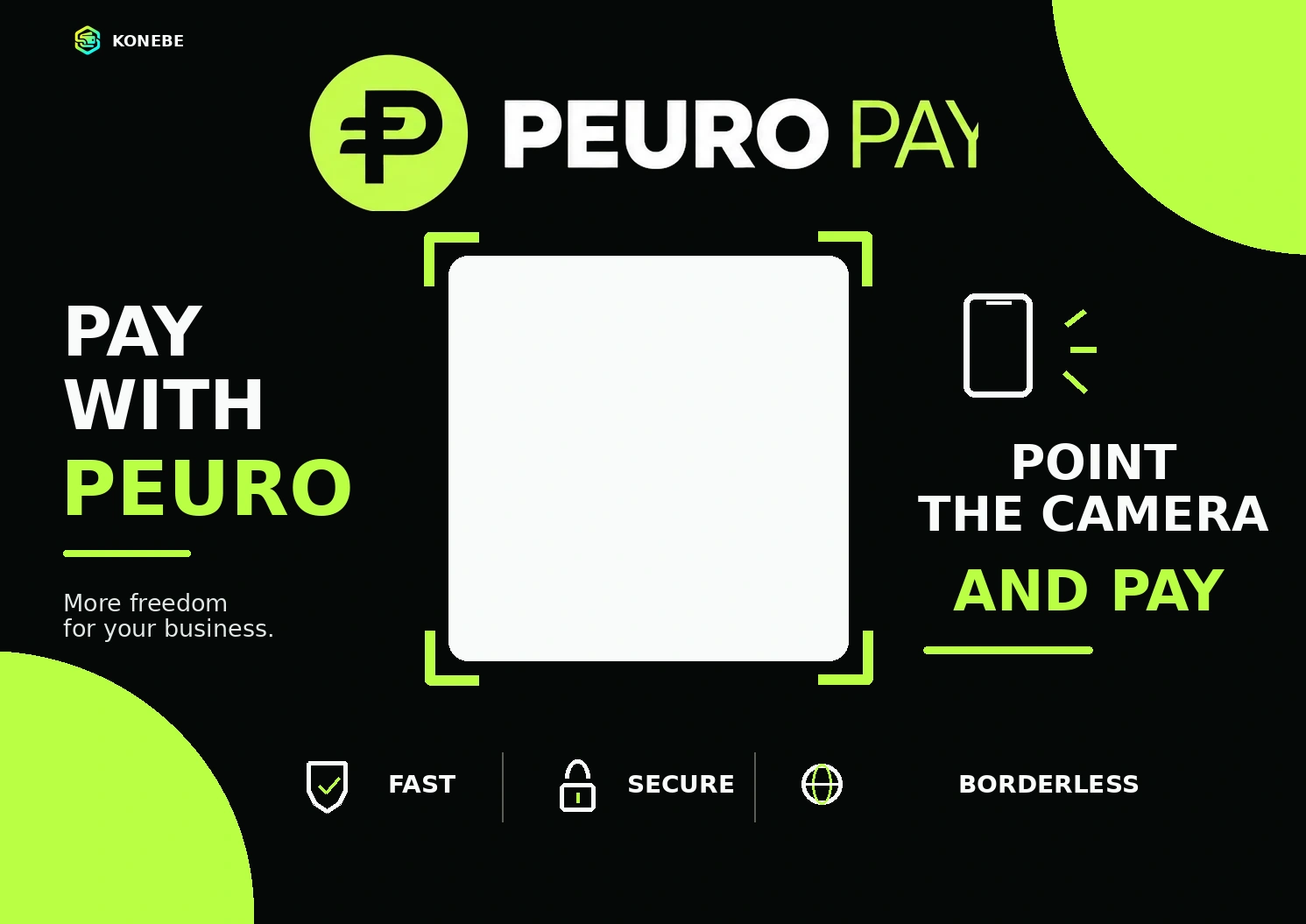
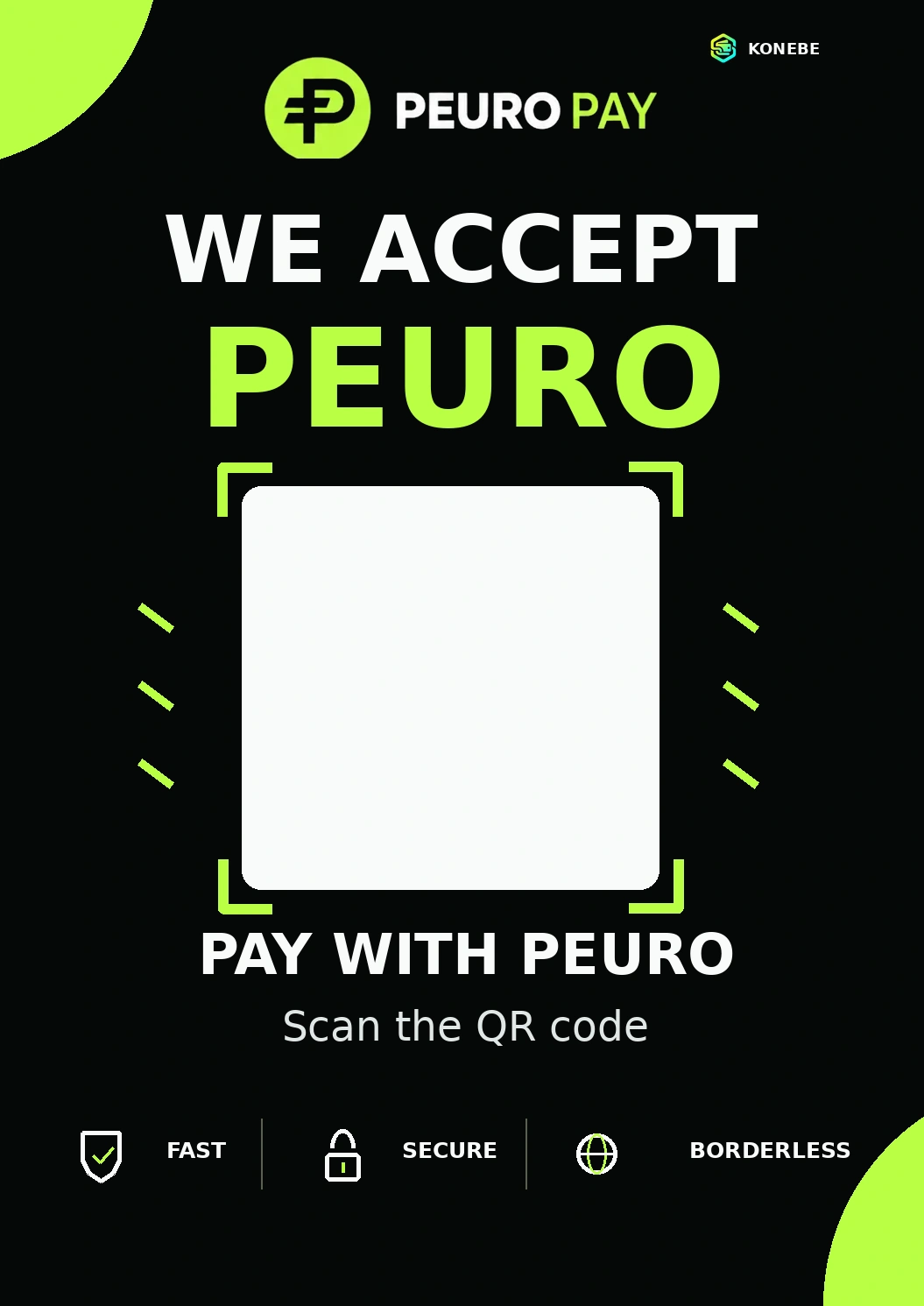
The QR contains only a Solana address. The payer must select PEURO on Solana in a compatible wallet; this is not an automatic payment request.